
What we'll cover
Share with your community!


Get Free Consultation

GitHub Copilot vs Cursor: Best AI Coding Tools in 2026
 David N. Wilks
These tools started as a fun new thing. Before long, workers turned to them constantly throughout each shift. These days, almost everyone who writes code grabs an AI aid automatically. Surveys say close to ninety percent lean on such helpers daily. When folks chat about top picks, two brands pop up most often. Slipping in without noise, one fits right beside your usual tools, almost like help that arrived late but knows the routine. The second? It tears down the walls of how editing works, then wires everything new from scratch using only machine thinking. What you’ve got now gets strengthened by the first, whereas the second ignores past rules completely, acting as if they never existed.
These guidelines line up GitHub Copilot against Cursor, comparing task handling through cost, team fit, data safety, and simplicity, giving developers or businesses a clear look at which AI coding helper stands stronger for 2026. Real use cases reveal where each tool truly lands. One suits quick adoption; the other grows with tighter control. Pricing shapes access, privacy policies reveal how much you can trust each tool, and learning speed matters just as much as output. The right choice comes down to daily use, not promises.
What Is GitHub Copilot?
Code gets written faster when help shows up right inside your editor. While you type, GitHub Copilot provides intelligent input using artificial intelligence, offering options so effort isn’t entirely on you. Should a query arise mid-task, an answer appears as if exchanged in conversation. Available across multiple editing tools, not limited to a single platform it aligns with your pace, be it rapid keystrokes or careful reasoning. Repetitive coding tasks become less visible, managed without intervention, allowing focus to shift toward meaningful challenges rather than structural details.
From 2021 onward, gradual updates shaped the tool’s development, beginning as a collaboration involving GitHub and OpenAI. Initially driven by Codex, it shifted toward advanced systems introduced later by firms such as Anthropic and Google. By 2025, Copilot's roots also trace back to the broader AI open-source tool ecosystem that OpenAI and GitHub drew early models and contributions from. The features began to shift: Agent Mode arrived, followed by smart next-edit suggestions. Many teams now pair this agent output with an AI task management software layer to track what Copilot has completed versus what's still in review. Its changes started spreading wider across projects, linking files and decisions more deeply, and its grasp of big-picture coding kept deepening into 2026.
GitHub Copilot Features
What makes Copilot stand out in the GitHub Copilot vs Cursor matchup is that it handles code generation while catching bugs across entire projects, with an awareness of broader context that shapes how it responds throughout your work.
- Automated task handling: Hand off a coding job and Copilot maps out the steps, then builds the fix on its own.Once the code exists, flaws are reviewed. Refinements occur across multiple rounds of adjustment. When complete, a pull request appears with no further input required.
- Works inside your editor: functionality activates naturally. Where code takes shape, be it VS Code, Visual Studio, JetBrains, or Neovim assistance emerges quietly. Switching applications becomes unnecessary due to seamless placement. Workflow remains undisturbed because support follows routine. Familiar patterns stay intact since adaptation isn’t forced.
- Cross-file awareness: Change one bit of code and Copilot spots the related sections that need tweaks, then suggests fixes across multiple files at once.
- Defect detection: Copilot Autofix catches security issues right inside pull requests and patches them on the spot, so fixing problems takes less time because it happens where the code shows up.
- Shared team knowledge: Through Copilot Spaces, companies gather docs and code in one shared place, so the guidance fits how each group works because everything lives together.
GitHub Copilot Pricing
- Free: $0 per month, with 2,000 completions and 50 chat or agent requests per month.
- Pro: $10 per month, with unlimited completions, better models, and more room for high-priority requests.
- Pro+: $39 per month, with the highest access limits and every available model.
- Business: $19 per user per month, including license management, policy features, and intellectual property protection.
- Enterprise: $39 per user per month, with deeper GitHub.com integration and the highest request limits of any plan.
What Is Cursor?
Cursor works like any standard editor yet runs on deep AI integration. A team named Anysphere made it in 2023, pulling roots from VS Code so most settings travel over untouched. Whole projects click into place inside its awareness, letting you speak edits plainly instead of wrestling with syntax. Tweak an existing block? Rewrite flows? Just say what's needed, no scripts required. Even terminal-style jobs follow natural phrases, doing work once reserved for rigid inputs. Familiar keys stay, habits stick, while meaning drives every change behind the scenes.
Cursor Features
Cursor pays close attention to your full codebase, moving through files and responding where needed, with its awareness staying grounded in the project's context.
- Agent-driven automation: Tell the system what needs doing in everyday words, and it figures out the steps on its own, writes the code, runs tests quietly, and fixes mistakes in loops you do not have to watch, so your mind stays free for the big-picture design.
- Multi-file edits in plain language: Tell Cursor what to change and it hunts down every matching spot in your files. When you rename something, the links to it update wherever they appear and imports shift automatically so nothing breaks. Every change shows up in a split view next to the original lines, so you can accept or skip each one.
- Swappable models: Cursor lets you switch between a powerful model and a lighter one depending on the task and how much you want to spend.
- Smart autocomplete: Blocks of code appear ahead of your typing, shaped by what comes next. Predictions stretch beyond single lines into full sections, which keeps your momentum up.
- Deep codebase comprehension: It reads across your whole project, piecing together patterns between files so its suggestions match the way your system actually works.
- Custom workflows and MCP: Whatever rules your team follows, Cursor makes them stick automatically, and tools and APIs plug right into the editor through Model Context Protocol.Some teams extend this further by connecting Cursor's MCP setup to an AI Workflow Automation Software, letting code changes trigger downstream actions automatically.
Cursor Pricing
- Hobby (free): No cost, with a one-week Pro trial, fewer requests, and limited completions, but enough to get you moving.
- Pro: $20 per month per user, with higher agent caps, unlimited completions, and background support.
- Pro+: $60 per month per user, with roughly triple the access to key models across most major systems.
- Ultra: $200 per month per user, with around twenty times the Pro usage and early access to new tools before others see them.
- Teams: $40 per month per user, with shared billing, usage insights, and role-based permissions.
- Enterprise: custom pricing, with pooled usage, SCIM seat controls, and detailed activity logs.
GitHub Copilot vs Cursor: A Brief Look
Tools That Help Developers Work Faster
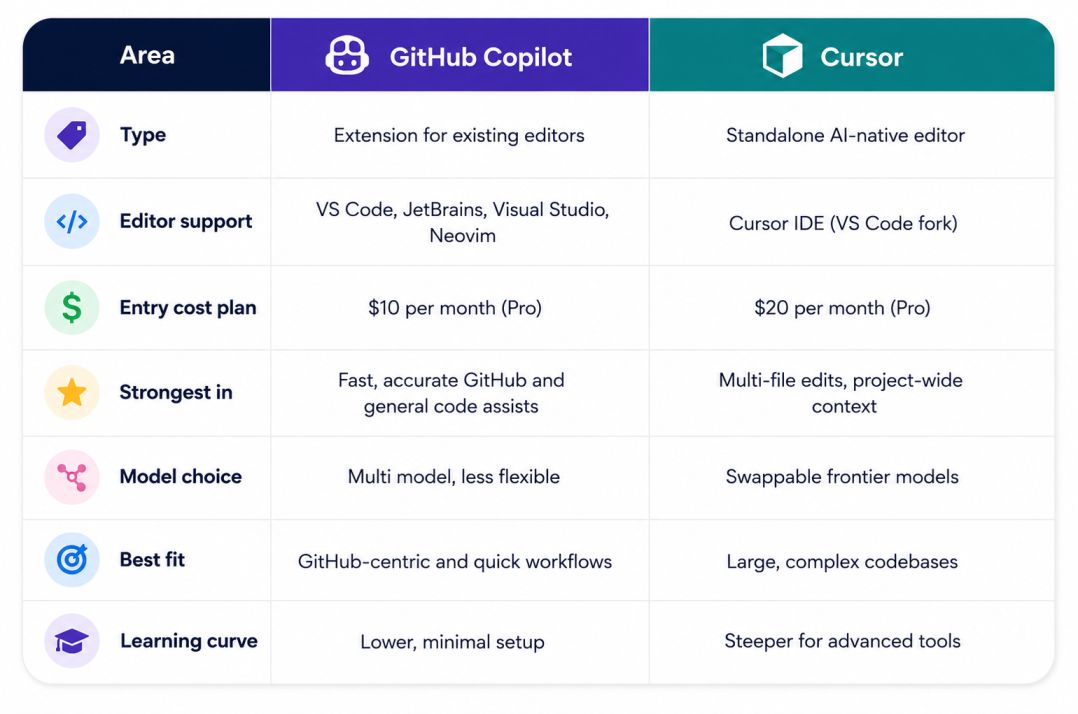
Getting extra hours back in your day is why people start using AI coding tools, and the GitHub Copilot vs Cursor comparison shows each one helps in its own way compared to writing code with no assistance. Copilot works best during short bursts, like finishing lines, correcting structure, or offering smart tips right inside your editor, and it also connects smoothly with GitHub actions such as merging code or checking updates. When tasks spread across many files, Cursor takes the lead, updating function names everywhere at once, adjusting imports correctly, and showing all the edits together so nothing slips through. Work that used to take ages now happens in one pass, as long as you review it carefully. Businesses notice this gap when teams move fast on small updates versus reshaping huge parts of a system. One feels snappier for light tweaks, while the other stretches further when rebuilding core pieces.
Choosing Between GitHub Copilot and Cursor
Whatever fits your rhythm matters most when picking between GitHub Copilot vs Cursor. Your workflow shapes the choice, complex projects tilt it one way, and team habits shift the balance. How you build steers the call.
Workflow and Project Complexity
Speed matters most when fast coding is your routine, and Copilot fits because it moves like part of the workflow. Midway through a line, words begin to shape themselves inside VS Code or JetBrains. Hints appear before you ask - guided by what came just before. When buried in GitHub, opening a pull request moves smoother with support close at hand. You hardly notice how it connects; the tools simply behave like they belong there. What shows up is clean - the clutter stays hidden. Not layered on top, but grown from within.
What sets Cursor apart is how easily it handles big codebases, especially when fine-tuning the AI's responses matters. Instead of just offering hints, it pulls insights from your entire project, adjusts several files at once, and lets you switch between different models. Because its conversations remember past steps, it can link changes across multiple files, which fits tightly woven software tasks. Larger refactors like this are often planned out first inside an AI IT project management software, so the scope of file changes is mapped before the agent starts. The complexity feels lighter because each reply builds on what came before, file after file.
Learning Curve
Getting started with Copilot feels smooth, since it fits right into the editors people already use, needs almost no configuration, and delivers helpful tips quickly. Cursor, even though it is built much like VS Code, has a steeper learning path because powerful tools like full-project changes, model selection, and automated agents take practice before they click. When speed matters most and interruptions should stay low, Copilot pulls ahead. But if tangled systems need to bend under control, and the extra setup time feels worth it, Cursor unlocks more ground later on.
Privacy and Data Handling
When businesses choose between GitHub Copilot and Cursor, how data is handled sways judgment just like performance does. While GitHub ties Copilot's behavior to its overarching privacy terms, only higher-priced plans promise code won’t be reused in training down the road. Individuals face fuzzier boundaries agreeing to sharing means pieces of their work can flow into updates, yet specialists point out careless inputs may expose private logic by accident. What seems minor might surface later when least expected. Cursor takes a different route with privacy mode, where data is not retained once you turn it on, and files stay local until you run a query. Team plans start with that switch already flipped. Either way, double-check which safeguards match your contract before rolling a tool out across daily work.
Pros and Cons of Each Tool
GitHub Copilot Pros and Cons
Pros:
- A solid deal at just $10 a month, and the free option works well too
- Runs smoothly across VS Code, JetBrains, Visual Studio, and Neovim
- Builds changes straight into GitHub, with smooth handling of pull requests, natural code review, and self-applying fixes
- Gets moving fast on one task at a time, with little setup and sharp performance on focused work
Cons:
- Working across many files often needs more direction than Cursor requires
- Agent work can use up premium request limits quickly
- Choosing a model feels more limited than Cursor's approach
- Privacy terms for individual users are less transparent
Cursor Pros and Cons
Pros:
- Best-in-class multi-file editing and project-wide refactoring
- AI-native editor where everything feels integrated
- Swappable access to multiple frontier models
- Powerful rules system and MCP support for custom workflows
Cons:
- Costs more at both the individual and team levels
- Works only inside the Cursor editor
- Steeper learning curve for advanced features
- Sits farther from the delivery pipeline, so it needs more setup before things run
Which One Should You Choose?
How you work shapes whether GitHub Copilot or Cursor fits better.
Choose GitHub Copilot if:
- Your team lives inside GitHub, handling repositories, code reviews through pull requests, and CI/CD workflows
- You work in JetBrains, Visual Studio, or Neovim alongside VS Code, since each setup links in smoothly
- A low starting cost matters and a free option lets you get on board quickly without risk
- Most of your day is quick, focused, single-file coding
Choose the cursor if:
- Your updates usually touch several files at once
- You want an AI that understands your entire codebase
- Model flexibility and project-shaped rules matter to how you adapt to each task
- You are building or maintaining large, complex systems
Conclusion
Choosing GitHub Copilot or Cursor isn’t just ticking boxes. It’s which way of working clicks with you. One slides quietly into what you already use, sticks close to GitHub, helps regular coding move quicker familiar, like something worn in. The other rebuilds the editor entirely around artificial intelligence and changes the rhythm of typing itself. When tasks stretch across dozens of files, or you would rather switch models freely, it steps forward. Need something that maps out a whole feature and then drafts the code? That is where it shows real muscle. Each tool cuts hours off manual work, but they trim in opposite ways: one blends in quietly, the other redraws the lines. Time savings come either way, shaped by what you value more. Some coders even use both. Pick the one that fits how you work best, test it where you build things, and only then does the GitHub Copilot vs Cursor choice start to make sense, no matter how many people code together.
FAQ's
GitHub Copilot is ideal for everyday coding assistance, while Cursor is better for large-scale refactoring and AI-first development workflows.
Cursor offers deeper codebase awareness and multi-file editing, while GitHub Copilot integrates seamlessly with popular IDEs and GitHub workflows.
Look for code generation, AI chat, codebase understanding, debugging, multi-file editing, security, and IDE integrations.
Yes, AI coding tools can automate repetitive coding tasks, generate code, detect bugs, and accelerate software development.
Choose an AI coding assistant based on your development workflow, project complexity, IDE preference, collaboration needs, and budget.

A CRM may store thousands of customers' records, sales activities, emails and notes. It's not enough to have all of that information in one place—yo [...]

Dokas mile

Most small businesses do not have an HR department. They have an HR person singular who is probably also covering something else: operations, office m [...]
David N. Wilks

In today's fast-moving, rapidly changing corporate America, the average salesperson spends very little of their week selling and the majority of their [...]